
Install Smash Ultimate PC on Windows
Updated · Covers WindowSmash v0.2.0-alpha.1 and OpenSmash runtime-c2ca705
WindowSmash and OpenSmash have separate source installers. Choose a project below to download its source, select your game files, build and start playing. Both are experimental, with no formal release. You will build the game program during setup.
On this page
WindowSmash on Windows
Download and prepare
Download the WindowSmash source ZIP. This is the source code; the installer builds the game program from it and can fetch newer source during setup.
| Before you start | What this path needs |
|---|---|
| Before you startPC | What this path needsWindows 10/11 x64; CPU with AVX2, FMA and F16C; DirectX 11 GPU with a current driver |
| Before you startMemory and disk | What this path needs16 GB RAM recommended; about 60 GB free for building, plus about 17 GB for your existing game files |
| Before you startTime | What this path needsAbout 15 minutes of actions, plus downloads and 30 minutes to a few hours compiling |
| Before you startGame folder | What this path needsYour existing compatible base game: .xci, .nsp or .nca files, with the existing update and DLC you intend to use |
| Before you startKeys folder | What this path needsYour existing prod.keys and title.keys |
| Before you startFirmware folder | What this path needsYour existing firmware .nca files |
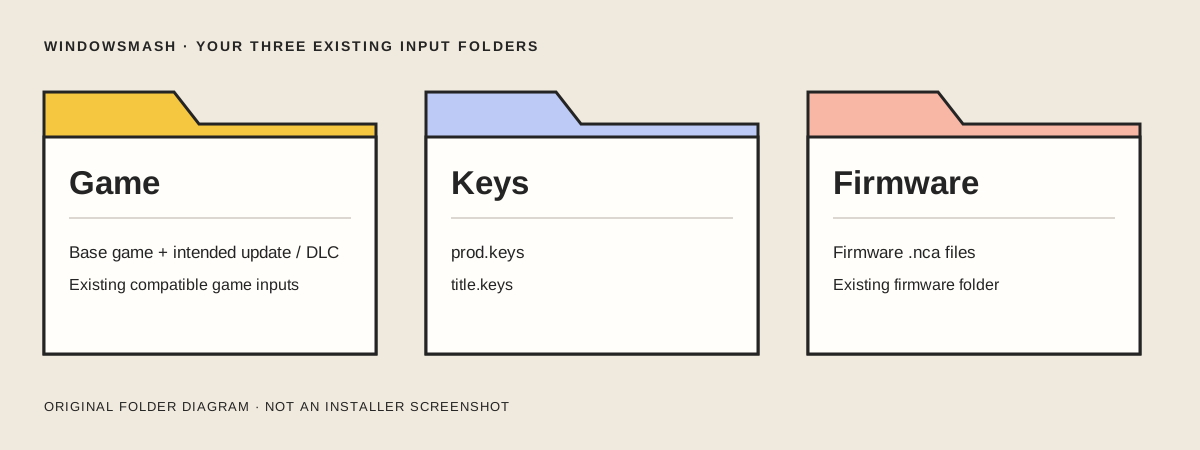
For WindowSmash, Game holds your base game and intended update/DLC, Keys holds prod.keys and title.keys, and Firmware holds firmware .nca files.
The installer looks in existing yuzu/Ryujinx folders on the same PC. Those files can stay where they are; use its folder picker when automatic detection selects the wrong directory. Use the game versions in the table below; game-file layouts can help you identify the folders.
Install and build
- Unpack the source ZIP into a local folder outside OneDrive or another cloud-synced Desktop/Documents folder.
- Open
Install WindowSmash.bat. - Review the PC checks in the installer.
- Select the Game folder containing your existing base game and intended update/DLC.
- Select the Keys folder containing your existing key files.
- Select the Firmware folder containing your existing firmware files.
- Check that all three file checks are green.
- Set the online name you want other players to see.
- Review the optional shortcut, firewall and shader-preparation choices.
- Click Set up and build.
- Wait for Done.
- Open
Play SSBU.bator the Play SSBU desktop shortcut.
The installer supplies private Python, SDL3 and the compiler tools. Its usual compiler path installs LLVM clang plus Microsoft's CRT/SDK components and asks you to accept their terms; a fallback can use Visual Studio Build Tools. You do not need to assemble those tools before opening the installer.
First launch and files
A minimised SSBU log window is normal. Let shader preparation finish; a new effect can briefly stutter on first use. Use the arrow keys to move and Z for the game's A button if you have no pad connected. Esc → Game → Quit exits; wait for the game to close before copying files.
| File or folder in the selected WindowSmash tree | Purpose |
|---|---|
File or folder in the selected WindowSmash treeinstall.log |
PurposeInstaller and build progress |
File or folder in the selected WindowSmash treebuild/play.log |
PurposeLast game run |
File or folder in the selected WindowSmash treereports/ |
PurposeCrash reports |
File or folder in the selected WindowSmash treesave/ |
PurposeProgress for that game-version tree |
File or folder in the selected WindowSmash treecontrollers.ini, display.ini |
PurposeInput and display settings in the project root |
File or folder in the selected WindowSmash treeonline_*.txt, netplay_id.txt |
PurposeNetwork settings and this PC's identity |
Keep the original game folders accessible. A separate game-version tree has its own save/; back up that whole folder with the game closed.
OpenSmash on Windows
Download and prepare
Download the OpenSmash source ZIP, whose folder is named ssbu-recomp- followed by the commit. Choose this repository source ZIP, rather than an ssbu-runtime-*.zip Release dependency. The installer selects the matching runtime itself and can update the source before building.
| Before you start | What this path needs |
|---|---|
| Before you startPC | What this path needsWindows 10/11 x64; SSE2 CPU; Vulkan 1.3 graphics driver |
| Before you startMemory | What this path needs16 GB RAM recommended; less memory can require fewer compiler jobs |
| Before you startSpace | What this path needsAbout 17 GB for prepared game files plus an approximately 8 GB build; .nsz input temporarily needs about another 17 GB during expansion |
| Before you startBuild time | What this path needsAbout 45 minutes on a 32-thread PC using 20 jobs; allow more time on a slower PC |
| Before you startGame files | What this path needsCompatible base game plus the supported update; .xci, .nsp, .nsz, .nca or an existing exefs/romfs directory; existing DLC if used |
| Before you startKeys and firmware | What this path needsInstaller checks existing prod.keys and firmware folders; firmware is optional, with replacement-font limitations when absent |
The installer searches .switch and existing yuzu, Ryujinx, suyu, sudachi and eden directories, including portable folders. Its file summary lets you correct the selected paths. Keep a compatible base game and update together; an update alone is not the base game. The supported versions are listed below.
Install and build
- Unpack the source ZIP into its own local folder, separate from WindowSmash.
- Open
Install SSBU.bat. - Review the PC checks.
- Choose Install location on a drive with the displayed free-space allowance.
- Review the detected game, update, keys and optional firmware paths.
- Correct any selected path that points to the wrong files or a missing folder.
- Click Install.
- Wait for setup to finish.
- Open
Play SSBU.bator the SSBU native shortcut.
The default install location is build/. The installer remembers a different choice in build_location.txt; Resume and the play launcher use that choice. It installs private Python into deps/python, downloads its tool dependencies and uses a matching prebuilt runtime when available. That usual runtime path needs LLVM 9 rather than MSVC Build Tools. Reopen the same installer after an interruption to resume.
First launch and files
Keep the window open while its first shader cache builds; the normal preparation path can take roughly 15 minutes of play to settle. The arrow keys move, Z is A and Enter is +. Close the game window to quit. Do not treat a permanently black window as ordinary shader stutter.
| Location | Purpose |
|---|---|
Location<install location>/logs/ |
PurposeBuild-step logs and timestamped game_*.log run logs |
Location<install location>/saves/ |
PurposeSave directory; default build/saves/ |
Location<install location>/config/ |
PurposeGraphics, controller and other settings |
Locationbuild_location.txt in the source folder |
PurposeRemembered large-file location |
Locationdeps/ in the source folder |
PurposePrivate Python and downloaded build dependencies |
Common setup stops
| Symptom | First action |
|---|---|
| SymptomWindowSmash file check stays red | First actionPoint the relevant field at the existing base-game, keys or firmware folder named in that check, then check files again. |
| SymptomWindowSmash compiler runs out of memory | First actionRetry with four compile jobs. |
| SymptomOpenSmash build was interrupted or a DLL is missing | First actionClose the game, reopen Install SSBU.bat and resume. |
| SymptomOpenSmash opening stays black | First actionReopen the installer to check the movie decoders, then read the last game log. |
| SymptomOpenSmash rejects a runtime | First actionRead the reason immediately above the error; keep source and runtime matched. |
Build and startup troubleshooting and black-window checks expand those fixes. Controls and save migration are optional next tasks once this setup works.
Retry WindowSmash with fewer jobs
Jobs are compiler tasks running at the same time. Use four jobs to resume a build that ran out of memory:
- Close the failed installer.
- Open your WindowSmash folder in File Explorer.
- Type
cmdin its address bar and press Enter to open Command Prompt there. - Run
"Install WindowSmash.bat" -Jobs 4. - Check the selected Game, Keys and Firmware folders in the installer.
- Click Set up and build.
- Wait for Done.
Versions covered by this guide
| Project | Source version | Release status and game versions |
|---|---|---|
| ProjectWindowSmash | Source versiona9aac43 |
Release status and game versionsNo formal release; v0.2.0-alpha.1 is a prerelease. 11.0.0 and 13.0.5; 13.0.5 has limited match testing. Mac: opening/menus only. |
| ProjectOpenSmash-Ultimate | Source versioneac10a1 |
Release status and game versionsNo formal release; runtime-c2ca705 is a prerelease. 13.0.4 and 13.0.5 recognised; Linux tested with 13.0.4. |
The OpenSmash installer for this source version selects runtime-c2ca705: ssbu-runtime-c2ca7059a0.zip, 5,972,511 bytes. The installer checks SHA-256 c67070750194d9f3ef5f023573c425b294df1502f2d55795218847eda401e99e; let it select the matching runtime rather than combining packages by hand.